Introduction
The last couple of iOS updates were hanging on the wrong side between
too little and too late. The user interface is six years old now and
while it has been repeatedly polished in every revision so far, it was
decidedly starting to look stale. And it's not just a matter of visuals
either. iOS 5 brought little to nothing in terms of new features and
some would even argue that iOS 6 was actually a step back. It seems
though that Apple has found inspiration again and is ready to take the
game to the opposition.

The UI that launched on the original iPhone way back in June 2007 has
finally been put to rest. Android has stepped up in big strides since
Gingerbread to dominate the smartphone game. Meanwhile, Windows Phone
keeps bringing new features, and even the conservative BlackBerry broke
with the old ways and completely redesigned its platform. It was about
time Apple did something different with the iOS.
The iOS 7 is among the largest upgrades the OS has ever been given -
not quite the game changer that the iPhone OS 2 and the App Store were,
but it certainly took a lot of effort. It not only brings some key new
features and a few cool system apps, but it also completely overhauls
the user interface and tweaks the right things under the hood.
Key features
- Complete UI overhaul with adaptive colors and system-wide Back swipe gesture
- New system icons and folders, animated icons available
- System-wide parallax effect
- Dynamic wallpapers
- Control Center with toggles, multimedia controls and shortcuts
- Updated Notification Center with three tabs
- All apps multitasking with new card interface
- Updated Safari browser with unified search filed
- iTunes radio
- AirDrop file sharing
- Inclinometer within the Compass app
- Camera filters with live preview and new square mode
- New Photos app with better photo organization, picture editing
- Weather app with live weather animations
- Updated Maps with Night mode and Turn-by-Turn walking directions
- New Siri interface, new supported commands, new voices
- Contact Blacklist
- FaceTime audio
- Activation lock
- Automatic app update
- Cellular data usage breakdown
- Chinese-English, Italian, Korean and Dutch dictionaries
- iOS in the Car coming in 2014 in selected cars
Main disadvantages
- Very iTunes dependent for uploading files and multimedia
- No open file system means you often have to duplicate files
- Limited integration of 3rd party social networks and services
- No widgets
- Air Drop works only between selected iOS 7 or later running devices
- No lockscreen shortcuts (besides those in the Control Center)
- Very basic camera UI with limited features and settings
- Limited codecs support
- iTunes radio only works in the US
The iOS 7 indeed has gone flat, but brings dynamic wallpapers and
parallax view to make those flat icons pop to life. Indeed, the parallax
effect is one of the few among the newly introduced features that is
truly unique to iOS (yes, it is available as an app for Android, but
here it's baked right into the OS). There is lots of transparency
throughout the iOS, brand-new flat theme, all-new system apps, live
icons, and a lot more.
From a functionality perspective, Apple has finally decided to give
us connectivity toggles organized within the new Control Center, iTunes
radio streaming service, the notification center has been completely
redesigned, there is AirDrop for easy sharing between different iOS
devices, and even more capable Siri.

Of course, there are still missing features. And while our prayers of
an open file system were always likely to remain unanswered, those for
better utilization of the lockscreen (with widgets and shortcuts) had a
chance. Well, you can't have it all, they say.
The iOS 7 update will be seeded to iPhone 5, 4S and 4; iPad 2, 3, 4
and mini; and iPod Touch 5 generation. But not all features will become
available on all devices. We also believe the iOS will be the last
upgrade for the iPhone 4 and iPad 2.
To help you quickly identify what you'll be getting on your iPhone,
iPad or iPod, we've got a handy table that lets you see everything at a
glance.
|
|
| Updated Siri | iTunes Radio | AirDrop | Panorama | Square photos | Camera filters | Photo filters |
| iPhone 4 |
| • |
|
| • |
| • |
| iPhone 4S | • | • |
| • | • |
| • |
| iPhone 5 | • | • | • | • | • | • | • |
| iPod touch 5G | • | • | • | • | • | • | • |
| iPad 2 |
| • |
|
|
|
|
|
| iPad 3 | • | • |
|
| • |
| • |
| iPad 4 | • | • | • |
| • | • | • |
| iPad mini | • | • | • |
| • |
| • |
Enough small talk though, let's get down to it and see what the new iOS is capable of.
Flat user interface with Control Center
The six years old iOS user interface is now gone for good. Lots of
people expected Apple to revamp the UI with the iOS 5 but it didn't
happen. The iOS 6 also didn't turn out to be the revamp many were hoping
for. This time Apple knew it had no choice if it wanted to stay
relevant at the top of the smartphone game.
John Ive personally monitored the redesign of the flattened iOS and
made sure it still carried Apple's character. iOS is the last major
platform to abandon skeuomorphism and go for a flat look, but it
certainly wanted to make the transition its own way, rather than simply
copy the competition. And the great news is the UI changes didn't come
at the cost of new features. We still got connectivity toggles, file
sharing, automatic app updates, improved multitasking with cooler
interface, live wallpapers, among others.
Before we continue here is a quick video demonstration of the new iOS 7.
iOS 7 looks a lot different to its predecessor, but its logic of
operation is mostly the same. All of your apps are on the homescreen,
folders are available and there is the familiar dock that can take up to
four shortcuts.


Apple iOS 7
All system icons are different though, the clock now has an animated
icon showing the current time, the system fonts have been altered, there
are lots of semi-transparent elements and new gestures.
Let's start from the beginning - the lockscreen. It's totally
different and yet it works in a very similar way. The slide to unlock
bar with virtual guide is now gone and you can swipe anywhere on the
screen to unlock your iDevice. The text is somewhat illogically placed
right above the tiny arrow for the control center which points up, but
you actually still need to slide to the right to access the homescreen.
We would have preferred swipe to left gesture to be also working, but
that's not the case.
The lockscreen also has the camera shortcut at the bottom, you can
swipe up from there for quick access to the camera app. Double tap on
the Home key will bring the multimedia controls as usual. Lockscreen
notifications are available as well.


The lockscreen works as before
You can notice two transparent arrows at the top and the bottom of
the lockscreen. Swiping from the top will bring the Notification Center,
while swiping from the bottom will pop up the new Control Center.


The Notification and Control Centers are available on the lockscreen
Unlocking the lockscreen brings you the revamped homescreen. You can
notice the Spotlight pane is now gone. Don't you worry, it's not
missing, it just activated with a new gesture - make a pull down gesture
anywhere on the homescreen and Spotlight search will appear above it.


The Spotlight is now hidden but has a dedicated gesture
Folders are available as usual, but there is no longer limitation how
many apps you can put inside them. Pages are available in the folders,
each page can pack up to nine apps, but there is no limitations for the
page count. And you can finally put the Newsstand in a folder!
Hallelujah!

An iOS 7 folder
Opening and closing folders are now accompanied by cool looking new
animations. Those do take a bit too long, though, and might become
irritating once you are past their wow phase. We are hoping Apple
shortens them a bit in the final version or at least give us the option
to switch them off. A cool bit is the folder icons and the folders
themselves are semi-transparent and their backgrounds adapt to the
background's prevailing color.
You should have already noticed the semi-transparent dock, folders,
keyboard and Control Center from the screenshots. The Notification and
Control Center colors are also adaptive, just like the folders, and
they'll change depending on the background. So they might be blue-ish on
the homescreen, but light gray in the web browser, or dark gray in the
settings, or green in the gallery, etc.


The semi-transparent Control Center and Notification Center in different colors
The keyboard is less transparent and has only two themes - very light
gray and very dark gray. Of course, they also change depending on
whether your keyboard has popped up on top of a light or a dark
background. Beside the new theme and font of its letters, the iOS
keyboard is unchanged, which is not a bad thing as it's certainly one of
the most comfortable around.


The iOS 7 keyboard
The changes don't end with those transparent and adaptive elements.
Opening an app shows you a zoom in animation over the app icon, which is
pretty cool.
Moving on to the parallax effect, which is visible throughout iOS 7.
As is to be expected, Apple designed the new iOS on independent layers -
background, homescreen icons, icon badges, app pop ups. The iPhone then
uses its accelerometer and gyroscope to move layers independently and
create an illusion of depth. The movement isn't too big so it's not
irritating. In fact you might not even notice it if you are not looking
for it, but it's there and it looks really awesome once you start moving
a bit your device.
The parallax is not only available on the homescreen. You can see it
in folders and on the pop ups that ask you for passwords or bring you
some notifications. Those pop ups by the way are also translucent and
adapt their background color in addition to the depth effect.

A system pop-up
Apple iOS 7 also brings live wallpapers. You can find them at the
Dynamic section in Wallpaper Settings. Currently there are only two live
wallpapers, but we expect more to become available in the AppStore as
soon as iOS 7 becomes available this fall.


Wallpaper settings • Dynamic wallpapers • Still wallpapers
You might have noticed from all those shots that Apple has ditched
the cellular coverage bars and replaced them with five dots. The battery
also got a new icon.

Three and five dots of cellular coverage and the new battery icon
Now let's talk about the elephant in the room that is the Control
Center. Apple has decided not to follow the competition and put the
connectivity toggles in the notification area. Instead it has placed
them into a brand new Control Center that is brought up to front with a
swipe from the bottom of the screen.
The Control Center
It has five non-customizable rows with different shortcuts. The top
row has five toggles - Airplane, Wi-Fi, Bluetooth, DND mode and Rotation
Lock. The second row has the brightness scrubber. Next come the
multimedia controls including a volume bar. The fourth row has AirDrop
and AirPlay shortcuts. Finally, at the bottom of the Control Center
there are four shortcuts - one that turns on/off the LED flash to serve
as a flashlight and three app shortcuts - Clock, Calculator and Camera.
We find the volume and media scrubbers rather needless, but nothing
in the Control Center is customizable for now. Still it's a great thing
to have and kudos to Apple for finally providing it.
The Notification Center has been redesigned as well. It now has three
tabs - Today, All and Missed. The Today tab has the date, today summery
(all of today's events), calendar day view (grid with hours and
events), reminders (lists your reminders for today), stocks and tomorrow
summary (the number of events you have for tomorrow).


Today tab • Settings
The Today's tab is customizable, you can disable its elements one by
one - everything but the date displayed at the top can be removed so it
doesn't get in the way. You can even disable the Today tab altogether
in the Notification Center for the lockscreen.
The All tab is basically the notification center of iOS 6 but lacks
weather, stocks and calendar events. The first two are now part of the
Today tab, while the weather is gone for good. You can disable the All
tab for the lockscreen as well (just turn off Notifications View). If
both Notifications (All) and Today tabs are disabled, the whole
Notification Center won't be accessible from the lockscreen.


The All tab • The Missed tab
The Missed tab holds the missed emails, messages and calls, while
your iDevice was locked. Those notifications are still available in the
All tab.
According to Apple iOS 7 offers multi-tasking for all apps.
Previously the true multi-tasking was reserved only for navigation apps,
the rest had to go in suspend mode.
Now, this multi-tasking for all apps will surely drain the battery
faster than Apple would have liked, so there is a catch. Yes, all apps
will work in background, but the iOS will learn which one of them you
use most often and when.
Let's say you open the Facebook app every morning soon after you wake
up and don't use it the rest of the day. The iOS will soon learn that
and will optimize the app to work according to your schedule until you
change it. This means most of the day and night the app will still be in
suspend mode (push notifications will work of course), but the iOS will
run Facebook shortly before your alarm goes on and load all the
content. That way when you open it, your news feed will be already
updated.
We noticed the apps also update in background when push notifications
come in. This is a part of what Apple calls opportunistic updates - the
iPhone waits until a data connection is in use and starts the updates
then, so it doesn't need to activate the connection on another ocassion
and waste your battery juice.
We haven't spent enough time with iOS to give a proper judgment on
how well the new multitasking works, but once we do we'll update this
article and let you know.
All apps that use Cellular/Wi-Fi connection and can work in
background are listed at Settings -> General -> Background App
refresh.


Background App refresh
The multi-tasking interface is invoked with double tap on the Home
key. It looks a lot like the webOS cards of old and, more recently, the
HTC Sense Task switcher - all apps are presented with cards that you can
swipe up to close. All cards have their app icon below the card so you
can easily recognize the app.


Multitasking in action
The multitasking UI works in both portrait and landscape mode, but
you cannot see more than three cards at a time. It's one of the
limitation of the card interface and we suspect this is why HTC went for
a different task switcher on the One, but here's hoping that Apple
will at least fix the landscape mode until the fall release comes.
The iOS 7 Settings menu has the same layout as in previous version
but has also been updated with the new flat and borderless look.
Besides the Background App Refresh, the iOS 7 offers even better
control over the apps the use mobile data.The Cellular tab offers
detailed cellular usage by apps and services and you can restrict apps
and services to use cellular data.


Settings • Cellular Data settings
Another thing worth mentioning is Apple has added Vimeo and Flickr
integration in addition to Twitter and Facebook. Once you enter your
account details in settings you can upload your photos straight to your
Flickr gallery, while your videos can be sent to your Vimeo profile. You
just need to hit the share key on a picture or a video and use the
dedicated Flickr/Vimeo icon.


Sharing on Flickr and Vimeo is easy
Sadly, the integration of third party social services is still pretty
limited and you won't be able to upload stuff to social networks and
service outside of the officially Apple-approved ones from here.
The final major change about the user interface is the Back gesture
available in all iOS 7 default apps (we guess developers will be able to
extend the support to third-party apps after the launch). Whether you
are in settings, App Store, Messages, Notes, Reminders, Safari, etc. you
can swipe from the right side of the screen and you'll go a step back.
Let's say you are in Settings -> General -> About, a swipe from
the right will take you back to General and another swipe will give you
the root directory of the Settings menu.
Phonebook gets a new look, blacklist
The phonebook has been updated with the new iOS borderless look and
simple color scheme. The logic behind the phonebook app is completely
the same though, there is just one new feature - Blacklist.


The phonebook • the dialer
You can either add contacts to the blacklist from the Settings menu,
or you can simply go to a contact and hit Block this Caller key at the
bottom. Once blocked you will no longer receive calls, FaceTime and
messages (SMS, MMS, iMessages, emails) from this contact. You can of
course unblock at any time.


Blocking a contact • The Blacklist is in Settings -> Phone
Telephony, FaceTime audio calls
The incoming call and in-call screens have gone flat too.


The incoming call screen • the in-call screen
FaceTime comes as a system app in iOS 7 and looks just like the Phone
app. The service now offers voice calls too, in addition to video
conference. With FaceTime audio calls and iMessages, iOS users won't
need Viber as much to connect with other iOS users free of charge.

An incoming FaceTime audio call
Messages and Mail got only new looks
The Messages app also gets the new iOS skin. It adds a new option in
the conversation view - Contact. If you tap on this key, you'll get
options to Call and FaceTime that user, or go to their phonebook
profile.


The Messages app
The default Mail client has the new looks but the functionality is unchanged.


The Mail app
New Photos app with image editor
The Photos app has been redesigned more thoroughly.
To begin with, the Photos tab looks better organized. Prior to iOS 7
we used to get a grid of all of photos there, sorted by date. Images are
now organized by date and location, for those that have been geotagged.
This view is called Moments, with a description always at the top, with
time, place and date.


Moments view • Taping on a place label will take you to the map
The Moments view offers multiple photos selection - you can select an
entire folder with just a single tap. Mass Delete, Share (including
AirDrop) and Add To Album options are available.
You can go a step back, to Collections view where you can better view
your sorted photos into groups with labels and much smaller thumbs.
Those thumbs are still clickable, you can even scroll them to find the
one you're looking for (small thumbs are hard to navigate through
though).

Collections view • scrolling through collection photos
A tap on a city label in Moments or Collections will take you to the
old Places view, where you get a map with pins showing where exactly
your photos were taken.
Finally, there is the Year view. It squeezes your collection into tight grids for each year.

Year view
The second tab is Shared photos - it has all your Photo streams.
Photo Stream works really well and is very simple to set up. You can
invite users you want to share your Photo Streams with via email or get
invited.

Shared photo streams
Finally, the third tab is albums. You get three default album types -
camera roll, my photo stream and panoramas. Albums can be added, edited
and deleted.
Images are displayed in full size and you can delete, share or edit
them. From the sharing menu you also get advanced options such as copy,
assign to contact, slideshow, print, use as wallpaper and AirPlay.
You can AirDrop multiple pictures from this interface as well.


Viewing a single image • sharing options
The photo editor is the same as before with a new option to add
filters. It supports rotation, cropping, filters and red-eye removal.
There's also an Enhance option too. In Edit mode five keys appear at the
bottom for the available editing options.


The image editor
Sadly, video player hasn't changed a bit
Many things have changed in iOS 7 but the video player is definitely
not one of them. You can upload only supported formats via iTunes or
purchase videos from the iTunes store. This is an extremely
disappointing showing by a platform that is supposed to excel at
multimedia consumption.


The video player
The lack of extra functionality is bad enough, but having to use just
an extremely limited number of codecs or resorting to convering files,
which is both slow and inconvenient is a real deal-breaker. Too bad for
the video-friendly 16:9 screen of the latest iPhone.
Music and iTunes Radio
The iOS 7 music player is exactly the same as the one in iOS 6, its appearance is in line with the new iOS design.


Music player
If you live in the US (the service will roll out in more countries
after the iOS 7 launch), your iOS 7 music player will get an additional
iTunes Radio tab. It's a music streaming service with the entire iTunes
content available for streaming.
The stations are divided by genres, but once you add a station, you
can choose to remove artists or add more songs from an artist/group. You
can preview a station before adding it to your list.


iTunes Radio
In case you like a song, you can buy it with just one tap. History is
available and you can always return to buy songs later. A Wish List is
available as well.


iTunes Radio Now Playing UI • Playing ads
iTunes Radio is ad-free if you are using iTunes Match. Otherwise, every 7 to 10 songs are broken by about 15sec of commercials.
New camera interface, filters with live preview
The camera app has been completely rewritten. There are four modes
available - Video, Photo, Square and Pano. There is no dedicated switch
for those, you need to swipe to get to the desired camera mode.


The iOS 7 camera interface
There are no image settings besides the flash and HDR toggles, but
there are 8 filters with live preview available for the Photo and Square
modes - Mono, Tonal, Noir, Fade, Chrome, Process, Transfer and Instant.


Filters with live preview are available in Photo and Square shooting modes
You can use filters and take square photos with the front camera as well.
Connectivity
There is one new feature in the iOS 7 connectivity department -
AirDrop. It's a system-wide file sharing service between supported
iDevices. AirDrop needs both Wi-Fi and Bluetooth on to work.
AirDrop is available in every share menu throughout the iOS 7. You
can send pictures, videos, App Store and iTunes links, Notes, Maps
links, all kind of files from file managing apps (i.e. Filer, Flash
Drive, Air Disk, etc.), Office docs, and more.


AirDrop in Photos, Browser, Notes, Mail
If there are people with AirDrop service around you, they will
automatically appear in the dedicated AirDrop field. You just mark your
files, select people and hit the send key.

AirDrop in action
AirDrop won't work with other phones and PCs, but will work on Macs running on OS X Mavericks.
Apple is continually improving its Find My iPhone service. The latest
iOS 7 updates it with the so-called Activation Lock. This will not only
protect your personal data but also make your iDevice inoperable once
wiped unless you enter your Apple ID. This means the stolen or lost
iGadgets will be of no use to thieves or finders.


Activation Lock
Safari browser gets unified search field
Apple has finally updated the Safari browser. Yes, it got flat looks and 3D tab switching, but that's just the beginning.
The first thing you'll notice is the unified search/address field. It
was about time, really. The next long-awaited features are the
full-screen view and auto-hide.


The new Safari web browser
Safari supports more than 8 tabs at last. We quit trying to reach the
limit at 22. The tab switching interface is a 3D arc where you swipe a
tab left or right to close it. You can rearrange the tabs, you can add
new ones or switch to private browsing.


The tab switcher • switching to Private browsing
When you switch to private browsing, you'll need to either close all
current tabs or migrate them to Private as well. It's not possible to
have private and non-private tabs open simultaneously like in Google
Chrome. When you are browsing in Private mode, Safari switches to a dark
gray color scheme.


The Private Safari skin
When you open your History you'll find a new tab called Shared Links.
Here you'll find all links from your Twitter timeline, with authors and
comments.


Bookmarks • Shared Links • Safari settings
Safari in iOS 7 supports iCloud keychain where you can store all of
your passwords and credit card info (sans the security code). There is
also a password generator available, in case you are out of ideas.
In SunSpider and BrowserMark 2, Safari on iOS 7 scored just a few
points better than the Safari on iOS 6. Once the final iOS 7 is out,
we'll try again to see if there is a real performance bump.
Organizer and apps
The Calendar app has been revamped as well and has a very useful new
feature. You can now drag and drop events if you want to move them to
different days. Just tap and hold on an event and you can move it to a
different day and hour.


The new Calendar
The Reminders interface has been changed as well. It comes with three
default lists - Scheduled, Calendar and Reminders, but you can create
your own lists as well.


Reminders UI
Setting up a reminder is easy. The available options are time, place, repeat, priority and notes.


Creating a reminder
The calculator has the new look but no new functionlaity.


The new calculator
Here is the refreshed Note app. You can share, copy and print notes.


Notes
The Clock app has got the new skin as well.


The clock app with alarms, world clock, stopwatch and timer
The Weather app has had a major update. It now offers live weather
animations, a lot more weather information plus the time of sunrise and
sunset.
You can pinch to zoom out and get to the cities view or use the i key
in the bottom right corner. Live animations are also available in the
city preview. Night animations are available as well.


The new Weather app
The compass app, besides the new interface, got some new
functionality too. If you swipe to left you'll get an inclinometer.
Unfortunately, the inclinometer only measure one of the angles of
inclination, rather than both, so it's probably too early to retire your
dedicated app. The Stocks app has new color scheme and UI.


Compass and the new inclinometer • Stocks app
Siri accepts more commands, has new voices
A new iOS version just can't afford to pay no attention to Siri. Just
as the rest of the iOS 7, Siri now looks different. It always launches
in full-screen and has a real-time voice graph. Another UI novelty is
the option to edit your voice request with the keyboard in case Siri
didn't hear you right.


The new Siri UI
Siri now offers some new voices as well, there is both female and male English US for example.
The most important Siri upgrades, of course, are under the hood. Siri now has Wikipedia integration.


Siri in action
Siri can also carry out commands affecting the iOS - it can turn
Bluetooth or Wi-Fi on/off, increase brightness, play voicemails, check
other people's social network status, play iTunes Radio stations, etc.
Maps gets turn-by-turn walking directions
The Maps app surely got some improvements, but even after the update
they can't quite measure to the competition like Google Maps and Nokia
Here. They are prettier looking though and got a major new feature - the
new Maps app offers turn-by-turn walking directions.


Maps UI
App Store now has automatic updates, nearby apps
iOS 7 brings one more feature that users have been asking for -
automatic app update. Once you turn it on in the App Store settings,
your apps will update automatically (via Wi-Fi only) and you'll get
notifications for the completed updates in the notification center.
If you decide to use the automatic app updates, the Updates tab in the AppStore will display a list of all recent updates.


App Store with new UI, nearby apps and automatic updates
The App Store offers another new feature - Nearby apps. Here you'll
find the most popular apps people have downloaded in your current
location.

Nearby apps
The App Store has a new hidden extra that will be appreciated by
those using iTunes gift cards. You can now scan the card codes with you
camera right in the App Store interface.

You can redeem codes with your camera
The Game Center gets a new look
Honestly, the Game Center has always looked awful. Apple finally did something about it and we like it.


iOS 7 Game Center
The Game Center offers pretty much the same functionality - it has your games, your friends and your challenges.
iOS in the car
Apple has announced a new connectivity mode that will be supported in
a wide range of vehicles, starting in 2014 - iOS in the car. You will
be able to see your iPhone screen on your compatible car display. And
you will be able to control it via your car controls or just tell Siri
via your car audio system what you want to do.
You will be able to use navigation, dictate messages, make calls, play music or iTunes radio, and more.


iOS in the car
Among the confirmed car manufacturers to integrate the new service
are Honda, Mercedes, Nissan, Ferrari, Chevrolet, Infiniti, Kia, Hyundai,
Volvo, Opel, Jaguar and Acura.
Final words
The long awaited iOS interface redesign is finally a reality. It can
be a dream come true for many, but others will have a point too in
calling it a blatant copycat, and even a cartoonish mess. But there's no
denying that iOS 7 is a major step forward for the platform and a real
breath of fresh air after the uninspiring iOS 5 and the fiasco of a iOS
6. This time we get a completely new UI
and a host of cool new
features that really make a difference from a user perspective - exactly
what Apple used to stand for at its best.
Like all things Apple though, there is no way that everyone will love
the new look. It's always like that with major redesigns - even if
everything about the new design was perfect there would always be a
large group of people to hate it for various reasons - some like the old
design better while others simply hate change. Apple could have helped
its case a little by starting last year with iOS6 and making this a
two-stage transition, but that's not the point now.

What matters is, in its 7th iteration, the iOS is finally looking
fresh again. Looking 2013, if you will. It has a lot of eye-candy: new
icons, the parallax effect, the translucent elements and menus, new
features, services and capabilities, upgraded system apps, etc. There is
a lot to look forward to in terms of features, too, and we believe this
is a proof that Apple is still capable of competing in the development
race. It will take Apple some time to get back to their cruising speed
after hitting the brakes with two iOS revisions in a row, but iOS 7 is
evidence that Apple can still move forward.
Now, some may have issues with the fact that the new services and
features are already available on other mobile operating systems.
Android has had toggles, real multitasking and automatic updates for
ages; Windows Phone has the live tiles and flat structure; even
BlackBerry has lots of those in the new BB10 OS. Yes, it may not be spot
on time, but Apple has never relied solely on the platform itself to
attract users - it's got the premium hardware and an unmatched app
catalog for the purpose.
What's important is that the OS doesn't get in the way as was the
case last year. iOS 7 is not only cool enough to keep people interested
over the next months, but it also sets up properly for the launch of the
new generation of iDevices in the fall. Apple's done with buying time,
and back to investing in the future. Let's hope the hardware to come in a
few months' time will keep it up.

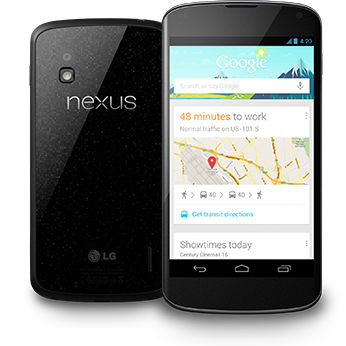 Nexus 4 review
 We've had several now – and everyone, it seems, had a go: HTC, Samsung,
Asus and LG – though strangely, not Motorola, which is now part of
Google itself.
We've had several now – and everyone, it seems, had a go: HTC, Samsung,
Asus and LG – though strangely, not Motorola, which is now part of
Google itself. Some handsets we look forward to with much anticipation – only to feel
deflated when we actually use them. Others, we wait for with little
expectation – and they absolutely blow our socks off.
A stealth surprise. We'll lay our proverbial cards on the table here from the outset. The Nexus 4 is one of those rare devices.
Some handsets we look forward to with much anticipation – only to feel
deflated when we actually use them. Others, we wait for with little
expectation – and they absolutely blow our socks off.
A stealth surprise. We'll lay our proverbial cards on the table here from the outset. The Nexus 4 is one of those rare devices. The
whole front is set within a dull chrome bezel and the shininess even
extends to the rear of the handset, which has an attractive, though
unusual sparkly pattern adorning it - although newer shipments seem to
be shorn of that element now.
Think the glittery kind of jacket that you could see Cilla Black, Joan
Rivers or Shirley Bassey in at an awards ceremony, and you catch our
drift.
Since launch LG has updated the design very slightly on the rear of the
Nexus 4, with newer handsets sporting two tiny bumps at the bottom of
the phone, which elevates the handset slightly.
This means sound isn't as distorted when played through the rear
speaker, plus it stops the shiny glass back of the Nexus 4 scratching on
the surface it's sitting on.
The
whole front is set within a dull chrome bezel and the shininess even
extends to the rear of the handset, which has an attractive, though
unusual sparkly pattern adorning it - although newer shipments seem to
be shorn of that element now.
Think the glittery kind of jacket that you could see Cilla Black, Joan
Rivers or Shirley Bassey in at an awards ceremony, and you catch our
drift.
Since launch LG has updated the design very slightly on the rear of the
Nexus 4, with newer handsets sporting two tiny bumps at the bottom of
the phone, which elevates the handset slightly.
This means sound isn't as distorted when played through the rear
speaker, plus it stops the shiny glass back of the Nexus 4 scratching on
the surface it's sitting on. Another
element worth pointing out here is the way the phone curves at the
sides, from the main panel into the bezel. It seems to make the screen
look even more realistic and beautiful. It's one of those things you
really have to experience to appreciate.
Round the edges, you'll find the usual adornments. A 3.5mm headphone
jack on top, volume rocker and micro SIM tray on the left, micro USB
port plus a few dubious screws on the bottom, and a perfectly placed
lock/unlock/power button on the upper right hand side.
It's just in that sweet spot where it's easy to press with the thumb if
you're right handed and not impossible if you're a leftie.There's
no way of getting the back off – so you know what that means, peeps. No
removable battery and no expandable storage. The former doesn't faze us
too much since the 2,100mAh battery pack is no slouch but the lack of
memory card allowance is annoying.
Another
element worth pointing out here is the way the phone curves at the
sides, from the main panel into the bezel. It seems to make the screen
look even more realistic and beautiful. It's one of those things you
really have to experience to appreciate.
Round the edges, you'll find the usual adornments. A 3.5mm headphone
jack on top, volume rocker and micro SIM tray on the left, micro USB
port plus a few dubious screws on the bottom, and a perfectly placed
lock/unlock/power button on the upper right hand side.
It's just in that sweet spot where it's easy to press with the thumb if
you're right handed and not impossible if you're a leftie.There's
no way of getting the back off – so you know what that means, peeps. No
removable battery and no expandable storage. The former doesn't faze us
too much since the 2,100mAh battery pack is no slouch but the lack of
memory card allowance is annoying. Yes, we know that ever since the Nexus S,
expandable memory is out. Google's said that it doesn't offer it
because it's confusing. But for those with lots of content who can't or
don't want to stream, it's a real pain. We don't quite buy Google's
argument.
As for the innards, LG has cut no corners here. Make no mistake, this is
a premium handset. DC-HSDPA, the very latest iteration of Jelly Bean 4.2, a Qualcomm Snapdragon chipset, quad-core 1.5GHz processor, A-GPS with GLONASS, NFC and so forth.But what makes this so sweet is the price. Let's just point out that sim-free, aHTC One X with similar specs will set you back around £320 (around $490/AU$475) and the Samsung Galaxy S3 can now be snapped up for £329 (around $525/AU$503).
Yes, we know that ever since the Nexus S,
expandable memory is out. Google's said that it doesn't offer it
because it's confusing. But for those with lots of content who can't or
don't want to stream, it's a real pain. We don't quite buy Google's
argument.
As for the innards, LG has cut no corners here. Make no mistake, this is
a premium handset. DC-HSDPA, the very latest iteration of Jelly Bean 4.2, a Qualcomm Snapdragon chipset, quad-core 1.5GHz processor, A-GPS with GLONASS, NFC and so forth.But what makes this so sweet is the price. Let's just point out that sim-free, aHTC One X with similar specs will set you back around £320 (around $490/AU$475) and the Samsung Galaxy S3 can now be snapped up for £329 (around $525/AU$503). And while last year's Galaxy Nexus will leave your wallet £299 (around
$477/AU$458) lighter, this brand new model, the Nexus 4 is priced –
almost unbelievably – at £239 ($299/AU$349) for the 8GB version and £279
($349/AU$480) for 16GB. Yes, the newer Nexus is cheaper than the year
old Nexus. Word!
We can't overestimate just how revolutionary this is and it leaves us open-mouthed at how Google is doing this. Either it's selling the Nexus 4 at a loss –
or the mark-up on handsets is now shown up as being ridiculously high.
Whichever it is, it means the Nexus 4 has a distinct advantage over the
competition.
And while last year's Galaxy Nexus will leave your wallet £299 (around
$477/AU$458) lighter, this brand new model, the Nexus 4 is priced –
almost unbelievably – at £239 ($299/AU$349) for the 8GB version and £279
($349/AU$480) for 16GB. Yes, the newer Nexus is cheaper than the year
old Nexus. Word!
We can't overestimate just how revolutionary this is and it leaves us open-mouthed at how Google is doing this. Either it's selling the Nexus 4 at a loss –
or the mark-up on handsets is now shown up as being ridiculously high.
Whichever it is, it means the Nexus 4 has a distinct advantage over the
competition.



 Size:132 x 63.2 x 9.25mm
 Weight:122g
 Display:4.3 inch, HD 720. 341 PPI


